
Environment
OS: Ubuntu 22.04 LTS
2 Server, with IP:
WP1: 10.10.10.176
WP2: 10.10.10.115
PHP 8.1
Install Nginx + PHP (Run on both server)
apt install nginx -yInstall PHP and needed extensions
apt install php php-{fpm,mysql,curl,xml,zip,mbstring,memcached,intl,pear} -yIf *apache2 also installed, then remove with
apt purge apache2 -yTesting PHP
Uncomment and change default PHP 7.4 to PHP 8.1
vim /etc/nginx/sites-available/defaultlocation ~ \.php$ {
include snippets/fastcgi-php.conf;
fastcgi_pass unix:/run/php/php8.1-fpm.sock;
}Restart nginx server
systemctl restart nginxAdd info.php for testing
echo "<?php phpinfo();" > /var/www/html/info.phpAccess using browser

Remove info.php after succesed access
Setup WordPress (Configure on WP1)
Download latest wordpress version with wget
wget https://wordpress.org/latest.tar.gzExtract it
tar -xvf latest.tar.gzAfter extract, make a new directory for store wordpress file
mkdir /var/www/wpCopy wordpress file
cp -fR wordpress/* /var/www/wp/Change owner and group of directory
chown -R www-data. /var/www/wpSetup Nginx for Accessing WordPress
Change directory to /etc/nginx/sites-available
cd /etc/nginx/sites-availableCopy the default site configuration
cp default wordpressEdit the wordpress file configuration
vim wordpressChange as below, change the server_name into your domain name
server {
listen 80;
root /var/www/wp;
index index.php;
server_name yourdomain.com;
location / {
try_files $uri $uri/ /index.php;
}
location ~ \.php$ {
                include snippets/fastcgi-php.conf;
                fastcgi_pass unix:/run/php/php8.1-fpm.sock;

        }
} Save and delete default configuration in /etc/nginx/sites-enabled
rm /etc/nginx/sites-enabled/defaultActivate wordpress configuration and restart nginx service
ln -s /etc/nginx/sites-available/wordpress /etc/nginx/sites-enabled/systemctl restart nginxWordPress is using database for storing data, you can deploy the database in WP1 and WP2 server and make data replicas/synchronize, or create another server for database only, read instructions here
MariaDB Maxscale with Database Master-Slave
before setup wordpress, you must create database and user for access it, example:
mariadb

MariaDB [(none)]> create database wordpress;
MariaDB [(none)]> grant all privileges on wordpress.* to wpuser@'%' identified by 'wppass';
MariaDB [(none)]> flush privileges;
Setup WordPress from browser, accesss it

Enter your database name, user, password, and database host

Click Run the Installation

Customize your wordpress website data
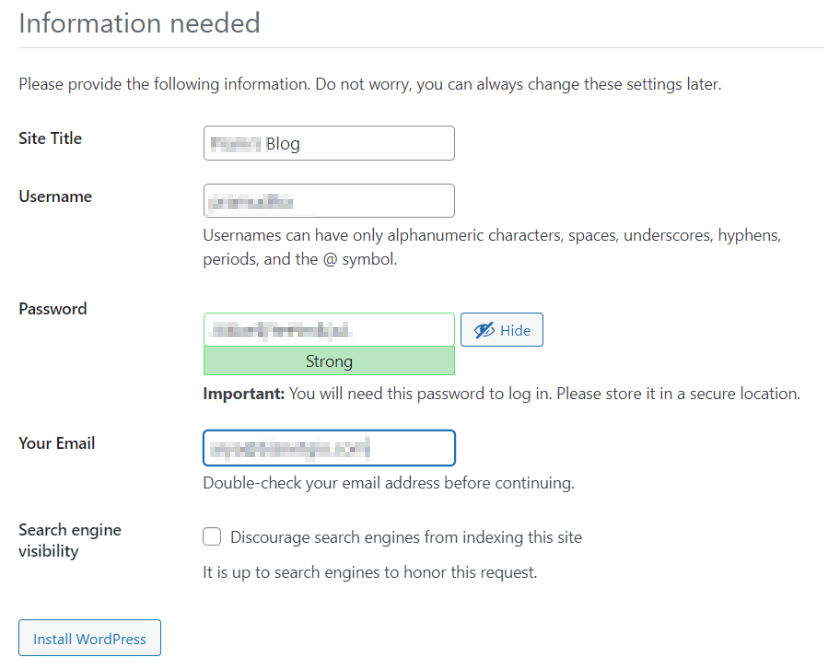
Finish, with Install WordPress
WordPress successfully installed!!
